
After returning from school, your son has been talking about Scratch and has asked for your help to continue his projects from his home computer. All of his enthusiasm for a school activity amazed you and now you’d like to learn more about it. Is that right? Don’t worry then: if you want, I’m here to help you and give you a hand to solve your doubts.
Scratch is a free, graphical programming environment that allows you to create animations using a block programming language, useful for learning mathematics, the basics of programming and developing a creative mind. For this reason, it is aimed primarily at children between the ages of 8 and 16. Apart from teachers and parents, it is also used by adults who like to keep their minds trained and learn new things. Interesting, isn’t it? Then don’t waste any more time and delve into this topic right away.
Make yourself comfortable, take a few minutes of free time and let me explain how to download Scratch on your computer, your tablet and how to use it online. Read the next paragraphs carefully, follow the directions I’m about to give you and I’m sure that, in no time, you’ll be able to create fun animations and interesting projects with your child. Happy reading and, above all, happy learning!
Minimum requirements and supported devices

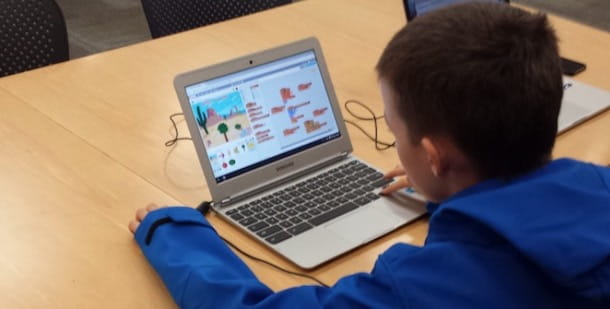
Before we get into the details of this guide and find out how to download Scratch on computers and mobile devices, let me tell you about the minimum requirements and the devices supported by the software.
The web version of Scratch can be enjoyed on PCs and Macs via Google Chrome, Mozilla Firefox, Internet Explorer (version 11 and up), Edge, and Safari. A version of Adobe Flash Player released after June 15, 2016 is required.
The offline version of Scratch is compatible with Windows PC, macOS and some versions of 32-bit Linux and requires the installation of the Adobe AIR 20 runtime. On mobile devices, however, the ScratchJr application is compatible with tablets equipped with a version of Android 4.2 or higher and with screens of at least 7 inches and with iPads equipped with iOS 8 and later.
Using Scratch from your browser

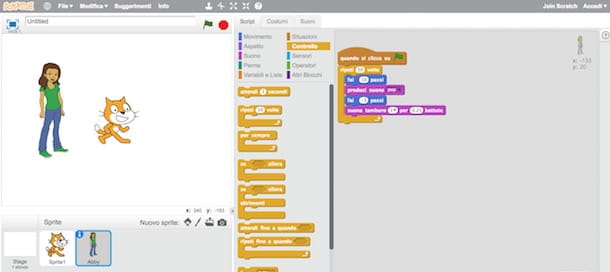
As mentioned above, Scratch is a free programming environment that uses a graphical and visual block programming language. To use it, you don’t need to install any software: in fact, you just need to access the editor on the official Scratch website via browser.
To use Scratch from your browser, launch the program you usually use to browse the web and connect to the Scratch main page. Now, click on Create in the top menu to start the editor and create your own interactive stories or animations. If you do not see the editor, you may need to update Adobe Flash Player or activate Flash Player, as I have indicated in my in-depth guides.
You should know that to use Scratch no registration is required, but if you want to get the most out of it I recommend that you create a free account, thanks to which you can share your creations with other users, access the discussions on the forum and comment on projects made by other people.
To create your account, click on the Join the Scracth community item at the top right corner, enter your information in the Choose your username and Choose a password fields and click the Next button, then enter your date of birth, gender and country in the respective fields and click the Next button again. To complete the registration, enter your email in the Email address field and click the Next and OK buttons, we’re off.
Download Scratch to your computer
To let users use Scratch even without an active Internet connection, the developers have created Offline Editor, a software to download and install on your computer that lets you program in offline mode. The program lets you save your creations locally and, as soon as an Internet connection is available, upload them to the Scratch site to continue working online from the browser.
Windows

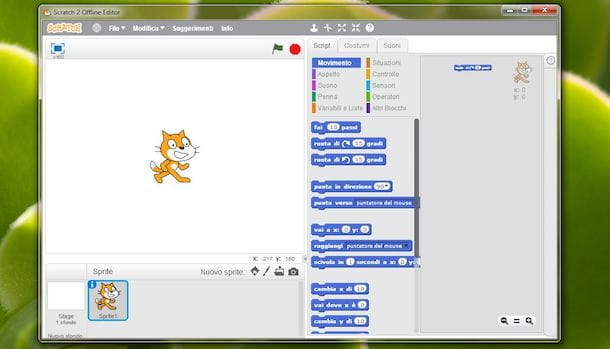
To use the offline version of Scratch on a Windows PC, you will need the Adobe AIR 20 runtime, which can be downloaded for free from the Adobe website. Go to the Adobe website, click on the Download Now button and wait for Adobe AIR 20 to download.
Once the download is complete, double-click on the AdobeAIRInsaller.exe file and click on the Run button, then, in the new window that opens, click on the Update and Accept buttons and wait for the installation to complete. Then click on the Finish button to complete the update and close the window.
Now, go to the Scratch website, scroll down the page and click on Offline Editor in the footer. On the newly opened page, locate the Scratch Offline Editor item, click on the Download option for Windows and wait for the download to complete.
Now, double click on the Scratch-[version].exe file and click on the Run button, uncheck the Add desktop shortcut (if you do not want to create a shortcut to Scratch on your desktop) and/or the Run application after installation (if you do not want to start the program after the installation is complete), click on the Continue button, wait a few seconds and click on the Finish button to finish the installation of Scratch and close the window.
If you did not set the automatic startup during installation, double-click on the Scratch icon to start the program, then press the world icon in the upper left corner and select the Italian option to set the Italian language.
If you wish, you can also download projects, guides and Scratch worksheets to your computer. To do this, go to the Downloal page on the software’s website, locate the Support Materials item and click on the Download button for the material you are interested in.
Mac

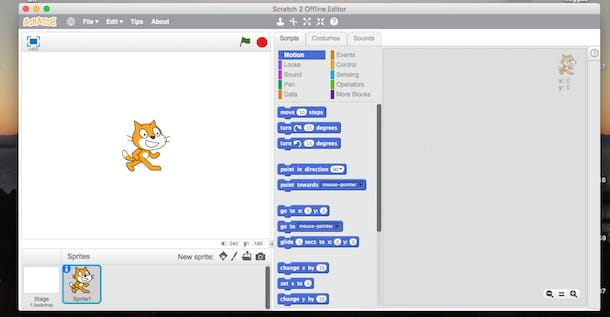
To install the offline Scratch editor on macOS, what connect to Adobe’s website and click on the Download Now button to download the latest version of Adobe AIR 20, which is necessary for proper installation of the software.
Once the download is complete, open the downloaded dmg package, double-click on the Adobe AIR icon and click on the Open button. In the newly opened window, click on the Update button, enter the Mac administration password (the one you use to log in to the system) and click on the Install Assistant button. Wait for the update to complete and click on the Finish button to close the window.
You are now ready to install the offline Scratch editor. So, go to the Scratch download page, click on the Download option next to macOS (for versions after 10.5 of the Apple operating system) and wait for the download to complete. If you have a version of macOS older than 10.5, click on the Download option next to macOS 10.5 & earlier.
To install the offline version of Scratch on your computer, open the downloaded dmg package, double-click on the Scratch icon and click the Open button to confirm that you want to launch an application downloaded from the Internet. In the newly opened window, if you do not want to launch the program after the installation is complete, uncheck the Launch application after installation option and click the Continue button to start the installation.
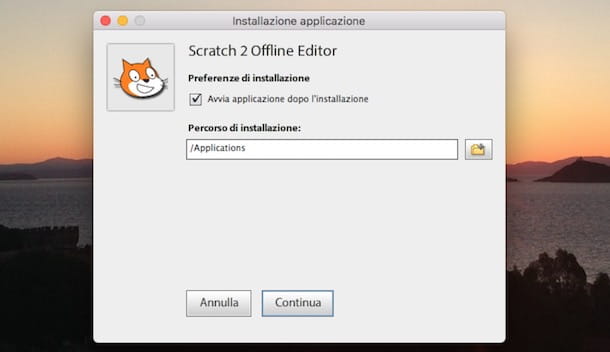
Wait a few seconds and click on the Finish button to complete the installation and close the window. To start the offline Scratch editor, open the Applications folder of macOS, double-click on the Scracth icon and you’re done.
Download Scratch to your tablet

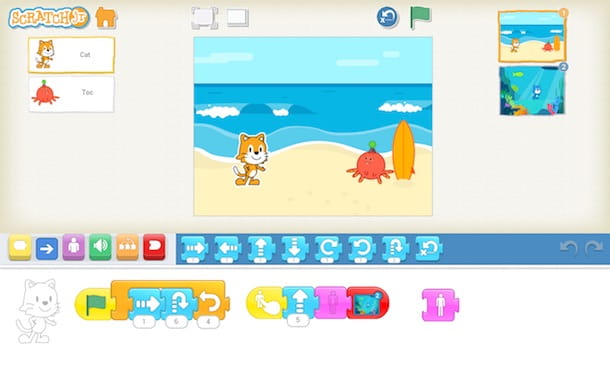
Scratch is also available for Android and iOS tablets, but in a version aimed at children between the ages of 5 and 7. ScratchJr, in fact, offers a different interface from Scratch, completely redesigned to adapt to the characteristics of younger children and meet their cognitive, personal, social and emotional development.
To download ScratchJr on Android tablets, locate the Play Store (the colored ? symbol) on your device’s home screen and tap on its icon to launch it. Now, tap on the magnifying glass icon in the upper right corner, type Scratch and locate the application among the search results. Then, click on the ScratchJr icon (an orange cat on a blue background) to access the app’s descriptive tab, tap on the Install and Accept buttons and you’re done.
If, however, you have an iPad, you can download ScracthJr through the App Store, Apple’s official store. Launch the App Store by clicking on its icon (the letter “A” on a blue background) and tap on the Search item in the menu at the bottom. Then type Scratch in the Search field, click on the Search button on the keyboard of your device to search for the application, then locate ScratchJr among the search results and click on the Get and Install buttons to download and install the application. You may be asked to verify your identity via Touch ID, Face ID or by entering your Apple ID password.
Once the download and installation are complete, click on the Open button that appeared on the screen to launch ScratchJr, otherwise tap on its icon that has been added to your device’s home screen.